Worker Call Report
The Worker Call Report presents a summary of each call that is dialed and received by the Worker. The report also includes the type of each call (Inbound/Outbound).
|
➢
|
To generate an Worker Call Report: |
|
1.
|
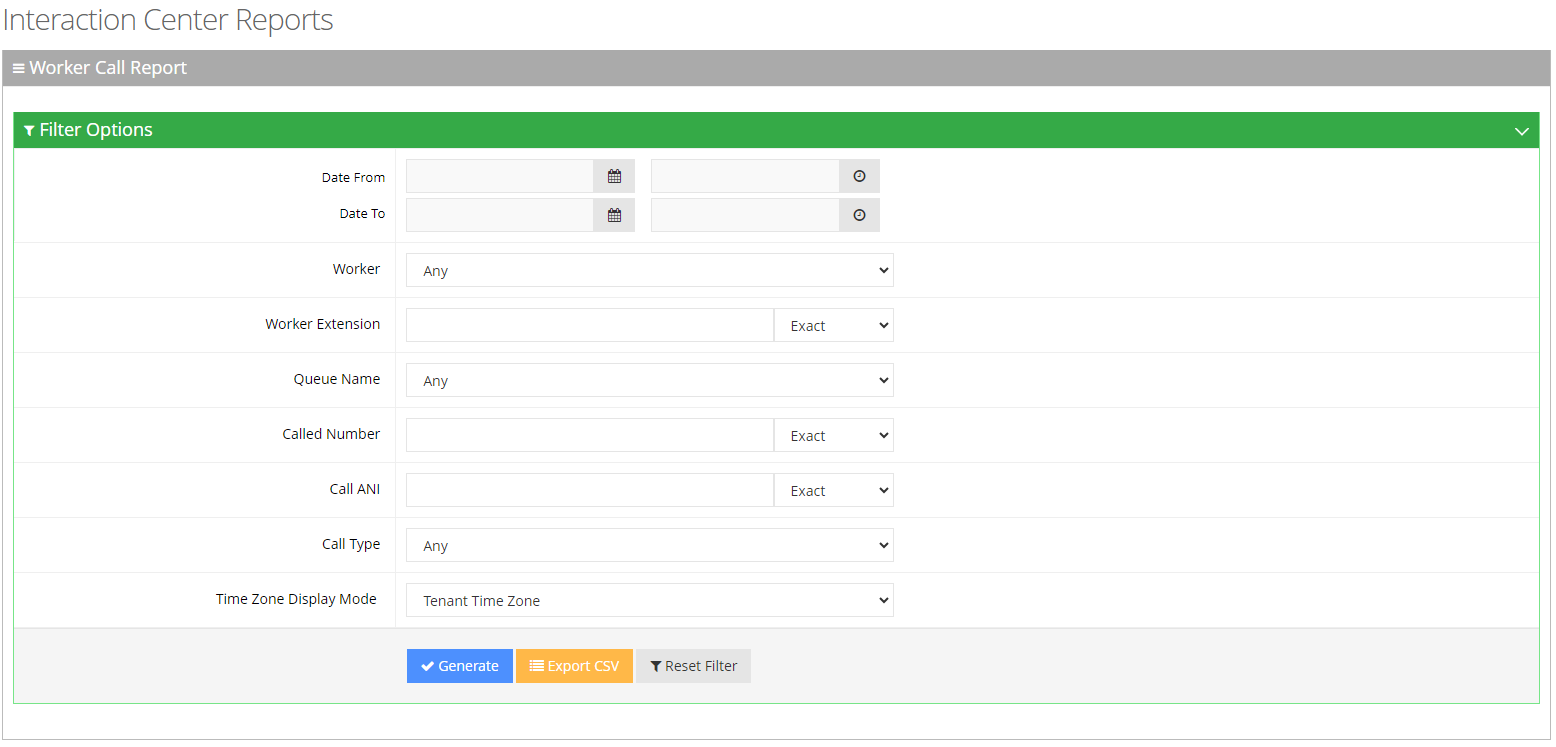
Open the Worker Call Report page (Reports > Interaction Center Reports > Voice Reports > Worker Call Report); the following appears: |
|
2.
|
Select the appropriate filter fields to generate your report: |
|
●
|
Date From: Defines this report for a specific time range. |
|
●
|
Date To: Defines this report for a specific time range. |
|
●
|
Workers: Defines information that is related to a specific worker. |
|
●
|
Workers Extension: Defines information that is related to a specific extension. |
|
●
|
Queue Name: Defines information that is related to a specific queue name or ‘Any’ to show statistics for all call queues. |
|
●
|
Called Number: Defines information that is related to a specific destination number. |
|
●
|
Call ANI: Defines information that is related to a specific source number. |
|
●
|
Call Type: Defines information that is related to a specific call type: |
|
❖
|
Any: Defines the information that is related to inbound and outbound calls. |
|
❖
|
Inbound: Defines the information that is related to all the inbound calls. |
|
❖
|
Outbound: Defines the information that is related to all the outbound calls. |
|
●
|
Timezone Display Mode: Display this report in different time zone. The time zone of calls can be one of the following options: |
|
❖
|
Tenant time zone: Display the information in this report based on the tenant configured time zone. |
|
❖
|
Flow time zone: Display the information in this report based on the time zone configured under the Telephony Setting settings. |
|
❖
|
Local time zone (Web): Display the information in this report on the browser local time zone. |
|
3.
|
The following is a description of the report fields. |
|
|
|
| Worker Name |
Defines the name of the worker.
|
| Worker Extension |
Defines the extension of the worker.
|
| Call Start Time
|
Defines the date and time the call started.
|
| Call End Time
|
Defines the date and time the call ended. |
|
Call Type
|
Defines whether the call was inbound or outbound.
|
|
Answering Device
|
Defines whether the call was answered via the Voca Worker App or via Microsoft Teams.
|
|
Call Duration
|
Defines the
duration of the call.
|
| Status
|
Defines whether the call was ‘Accepted’ or ‘Declined’ by the worker.
|
| Called Number
|
Defines the telephone number that the caller dialed.
|
|
Call ANI
|
Defines the originator's telephone number (ANI = Automatic Number
Identification).
|
|
Call Routed Queue
|
Defines the queue to which the call is queued.
|
| Call Skills
|
Defines the skills that are associated with the queue to which the call is routed. |
|
Participants
|
Defines the number of additional participants added to the call.
|
|
Talk Time
|
Defines how long the worker was in the talking state.
|
| Hold Time
|
Defines how long the call was put on hold.
|
|
Consult Time
|
Defines how long the Worker connected with supervisors or others for consultation.
|
|
Wrap-up Time
|
Defines how long the Worker was in Wrap-up state.
|
|
Wrap-up State
|
Defines the selected Wrap-up state.
|
|
Recording
|
Defines whether the call was recorded or not.
|
|
Sentiment
|
Defines the emotional tone of the call.
|
|
4.
|
Click Generate to generate the report; click Export CSV to export the report in CSV format. |

|
5.
|
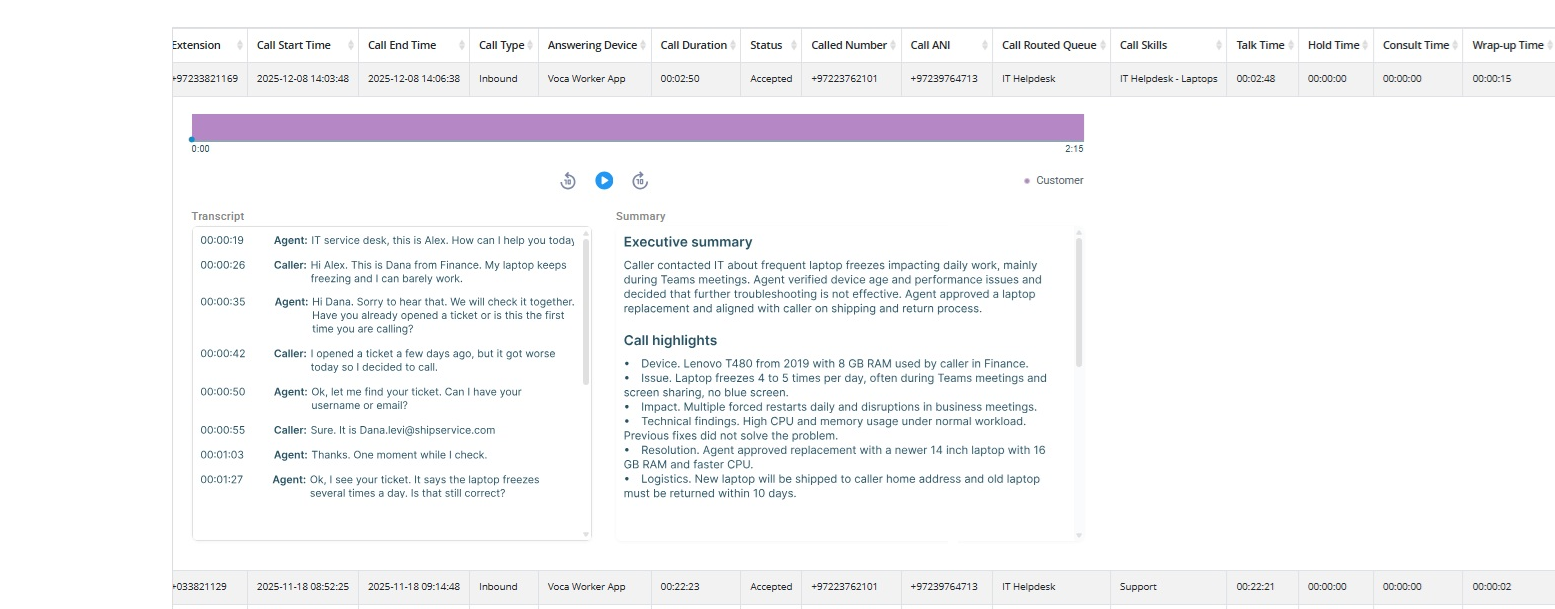
Expand call record to view call recording details. |
|
●
|
For any recorded call, you can: |
|
❖
|
Listen to the call recording using playback controls that allow you to forward or rewind by 10 seconds for easy navigation. |
|
❖
|
Download the recording. From the Save Call drop‑down, select Recording and click Save. |
|
❖
|
Share call recording link by clicking the Copy link icon, located to the right of the playback controls. By default, only Tenant Admins and Tenant Analysts can access these links. To grant additional users or groups access to recording link, see the Recording Links configuration under the Access Management section. |
|
●
|
If the call used the Agent Insights Add‑on, you can also view: |
|
❖
|
Sentiment - the emotional tone of the call, which can be: |
|
❖
|
Positive – The conversation was constructive and friendly. |
|
❖
|
Negative – The conversation involved frustration or conflict. |
|
❖
|
Neutral – The conversation was matter‑of‑fact with no strong emotions. |
|
❖
|
Combined sentiments (e.g., Neutral–Negative) – The call’s tone shifted during the conversation. For example, the call may have started professionally but became tense as the agent or customer grew frustrated. |
|
●
|
Additional Notes - You can view agent’s notes added at the end of the call. |